 Rhetorica Docs
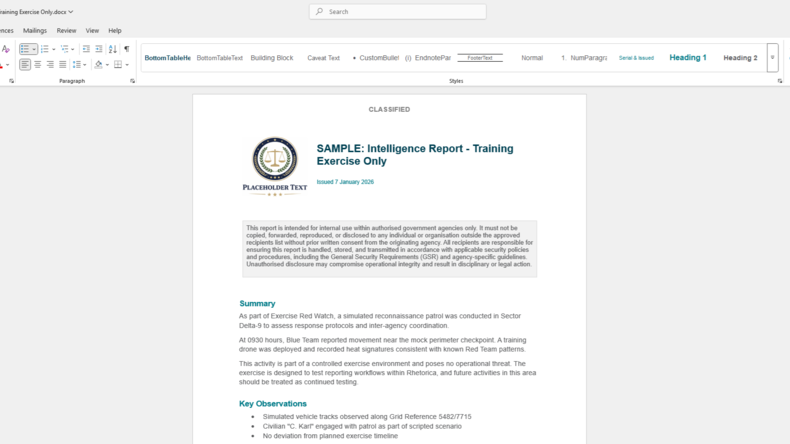
1. Start a new report
Create a new report based on your organisation's configured layout and structure. Each report starts with the correct sections, fields, and formatting already in place — no copying or adapting Word templates.
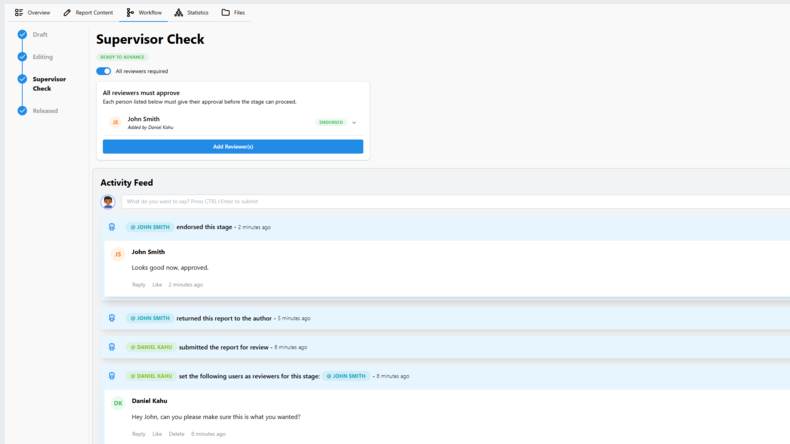
A typical reporting workflow.
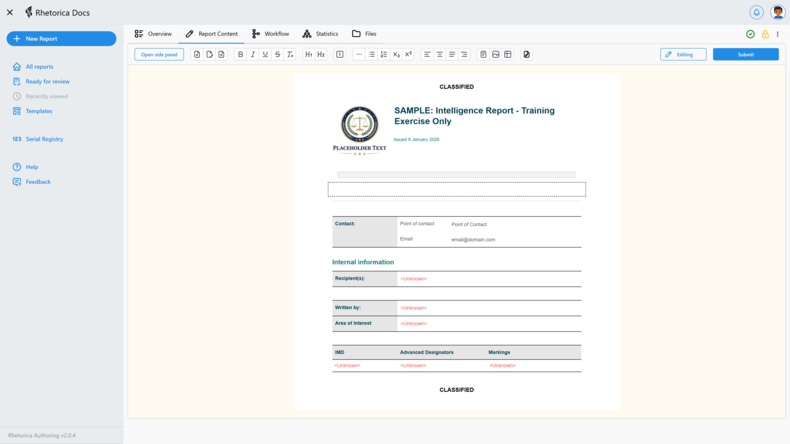
Create a new report based on your organisation's configured layout and structure. Each report starts with the correct sections, fields, and formatting already in place — no copying or adapting Word templates.
Write the content using a rich text editor configured to your organisation's styling and rules. Headings, paragraphs, lists, tables, and embedded images behave consistently across all reports.
The editor enforces structure where required, while still allowing flexibility for free-form analysis and narrative.
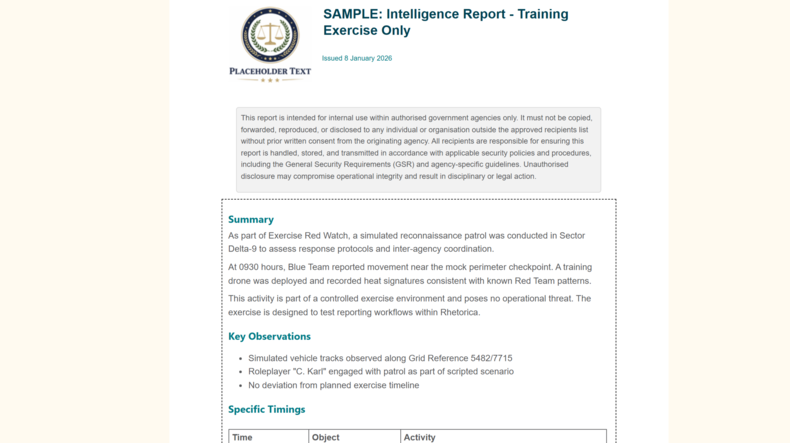
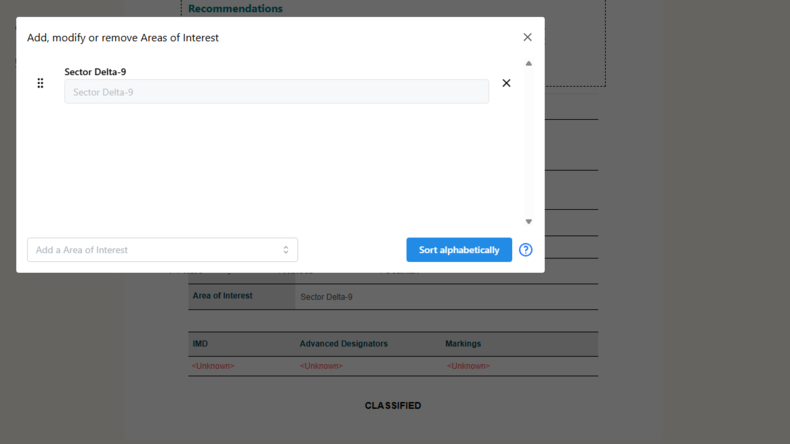
Alongside the written content, reports include structured fields for non-textual data such as classifications, dates, confidence levels, or other domain-specific values.
Using field-based inputs helps ensure required information is captured correctly and consistently, reducing errors and rework later in the process.
These are customised to suit the needs of your organisation.
When the report is ready for review, the author initiates an approval workflow. Workflows can be configured to match your organisation's review and sign-off process, including multiple reviewers and approval stages.
Each step is explicit and controlled. There is no ambiguity about who needs to review or approve the report next.
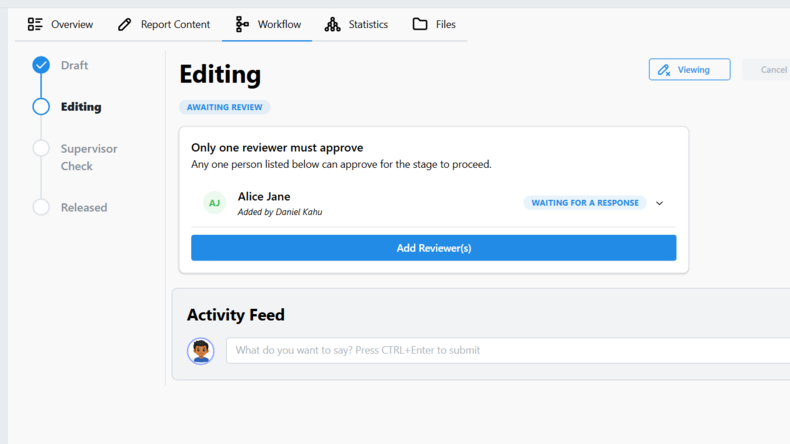
Reviewers access the report directly in Rhetorica Docs. They can add inline comments, propose tracked changes, and review the full report in context — without exporting to Word or emailing files back and forth.
All feedback is captured in the platform and linked to the relevant version of the report.
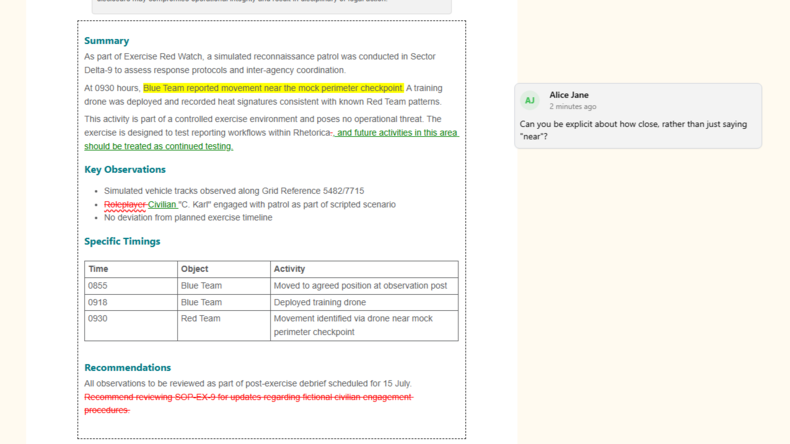
The author updates the report in response to feedback and progresses it to the next reviewer or approval stage. Changes are clearly visible, and the workflow ensures the report moves through the correct sequence of reviewers.
There is no need to manage versions manually or reconcile conflicting edits.
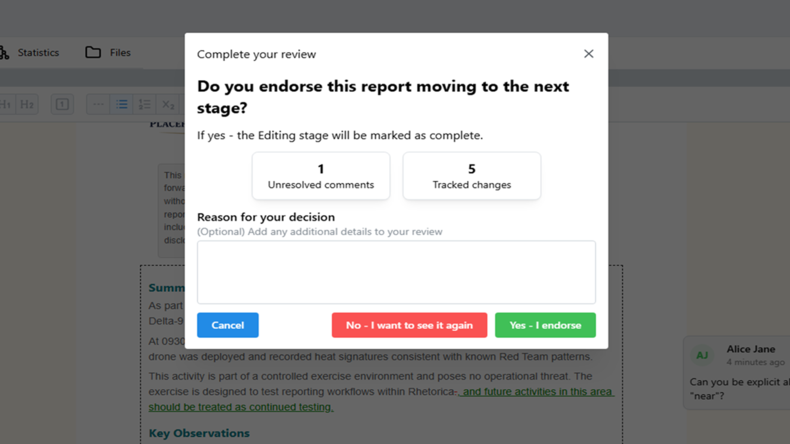
Reviewers can view previous versions of the report to confirm that requested changes have been made. Version history provides a clear record of how the report has evolved over time.
This makes review decisions easier and reduces back-and-forth during approval.
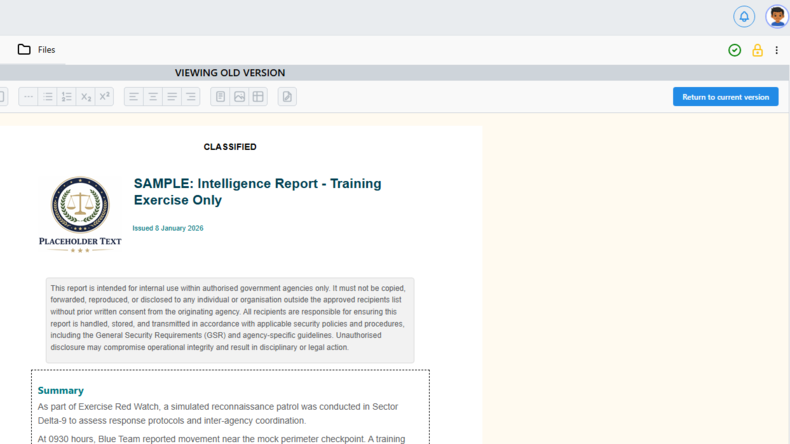
Once all approvals are complete, the report is finalised and locked. The final version represents the approved, authoritative record.
The full audit trail — including changes, comments, and approvals — is retained for reference and accountability.
Approved reports can be exported in standard formats such as DOCX or PDF, or into custom formats where required.
Exports preserve structure, formatting, and required metadata, ensuring reports can be shared or archived without additional manual work.